Boundary file requirements
What SolarLayout needs in your boundary file (KMZ or KML) — and how to make one in Google Earth.
A boundary file describes the boundary of your site. It's the only file you need to start a project. SolarLayout reads it, places solar modules and infrastructure inside the boundary, and produces a layout.
Supported formats: SolarLayout accepts both .kmz (zipped, the
default Google Earth Pro export) and raw .kml (unzipped XML, what
QGIS / GDAL / scripted exporters typically produce). The two are
treated identically — same parser, same geometry rules. The rest of
this page uses "KMZ" generically; everything below applies equally to
a raw KML file.
What you need
At minimum: one outer polygon drawn around your site. That's it. SolarLayout fills in everything else.
A polygon is the most reliable. SolarLayout can also recover a boundary from a closed path, or a set of line segments that trace the full outline (common in survey / CAD exports) — it stitches them into a polygon automatically. What it can't use is loose points / markers, or an open path that doesn't close back to its start: join those into a single closed polygon first.
You can also include:
- Multiple plots — if your site is split into separate parcels, draw one outer polygon per parcel. SolarLayout designs each as its own plot.
- Exclusion zones — for areas inside a boundary that aren't usable (existing structures, dry obstructions, water bodies), draw a polygon inside the boundary polygon. SolarLayout treats any polygon that sits entirely inside another as an exclusion for that plot — no modules go there.
- Transmission lines, canals, and roads — draw these as lines inside the boundary and name them so SolarLayout keeps modules clear of them. The exact words to use are in the Feature keywords table below.
We accept any KMZ that Google Earth Pro can save. Coordinates are interpreted as WGS84 (latitude −90 to 90, longitude −180 to 180 — the default for Google Earth).
Plot boundaries and exclusion polygons are decided by geometry, not by names — an unnamed polygon inside your boundary is still kept clear. Lines are different: a line only becomes a transmission line, canal, or road if you name it (see Feature keywords). A line with none of those names — including the
PolylineandUntitled Pathplacemarks Google Earth adds automatically — is treated as a sketch and ignored, so leftover annotation lines won't eat into your layout. The flip side: a real transmission line or canal only gets its setback if you name it.
Feature keywords
SolarLayout decides what a line means from its name. Draw the feature as a line inside your boundary, name the line with one of the words below, and SolarLayout keeps modules clear of it. This table is the full, authoritative list — if a line's name isn't here, the line is ignored.
| Feature | Draw it as | Name it with any of these (not case-sensitive) | What SolarLayout does |
|---|---|---|---|
| Transmission / power line | a line | transmission, transmission line, powerline, power line, HV, HVL, EHV, 132kV, 220kV, 400kV, TL, line, tower, pylon, overhead | Keeps modules 15 m clear on each side (a 30 m-wide no-build corridor). |
| Canal / drain / stream | a line | canal, channel, drain, drainage, nala, nallah, nullah, river, stream, creek, flood | Keeps modules 15 m clear on each side. |
| Internal road | a line | road, roads, street, highway, track, access road, service road, internal road | Keeps modules clear of the road — a 5 m-wide corridor by default, or the width you set (see below). |
| Water body (pond, lake) | a polygon | pond, lake, reservoir, water, wetland, swamp, marsh, waterbody | Treats it as an exclusion — no modules inside. |
| Any other obstruction (building, yard…) | a polygon inside the boundary | (no keyword needed) | Treats it as an exclusion — no modules inside. |
| Anything else drawn as a line | a line | (any other name, or no name) | Ignored — treated as a sketch / annotation, no effect on your layout. |
A few rules apply across the whole table:
- Names ignore case, and underscores and hyphens count as spaces —
access_road,Access-Road, andaccess roadall match. - The keyword has to be a whole word in the name.
Transmission Linematches; Google Earth's auto-namedPolyline [1A2B]does not (it isn't the word "line"). - A line only affects your layout if you name it. Name your real
transmission lines, canals, and roads. The leftover sketch lines
Google Earth creates —
Polyline,Untitled Path— can stay in the file; SolarLayout ignores them.
Heads-up on generic words. Single common words like line, tower,
drain, or track are enough on their own to trigger a setback. If you
name an ordinary feature something like "boundary line" or "fence track",
SolarLayout will read it as infrastructure and keep modules clear of it.
When in doubt, use a specific name (the table's first column) for real
infrastructure and a plain name for everything else.
Setting a road width. Roads default to a 5 m corridor. To use a
different width, add an ExtendedData field named width (in metres)
to the road line's placemark — SolarLayout reads it and buffers the road
to that width. Most teams leave the default; this is for exports from
QGIS / CAD that already carry a width attribute.
How to make one in Google Earth Pro
Open Google Earth Pro
Google Earth Pro is free for desktop — download here. The web version of Google Earth can't save KMZ files, so make sure you have the desktop app installed.
Draw your site boundary
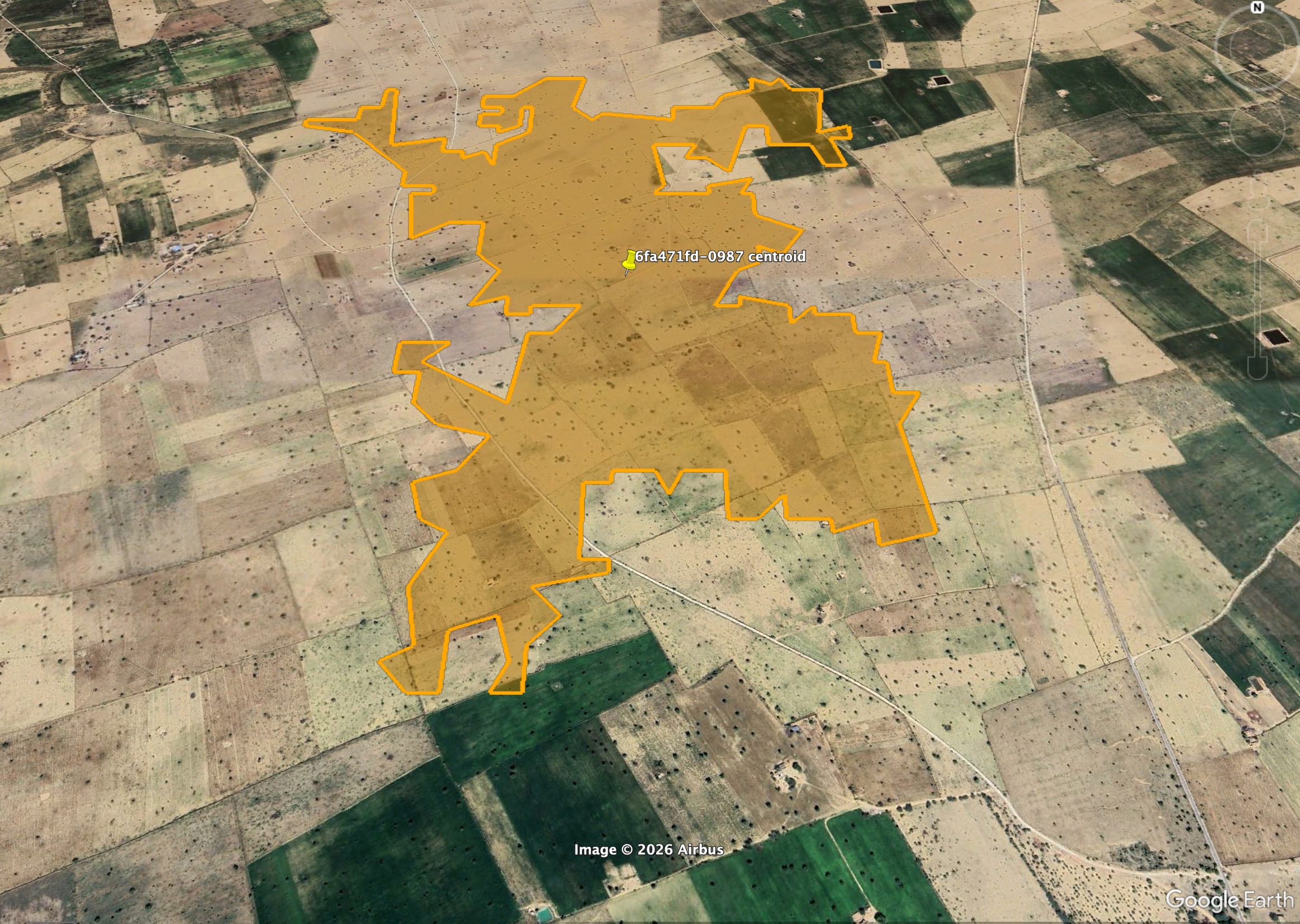
Use the Add Polygon tool (toolbar, or Add → Polygon from the menu bar). Trace your site's outer edge.
Close the polygon at the same point where you started. An open ring (start and end points that never meet) is the single most common reason a KMZ gets rejected — if SolarLayout can't find a closed outline it tells you your file is missing a site outline (see Common issues below).
Give the placemark a name your team will recognise (the site name or plot reference). The name itself isn't load-bearing for the parser, but it appears in the Inspector as the plot label.
(Optional) Add more plots
For multi-plot sites: draw additional outer polygons (not nested inside each other). SolarLayout designs each plot independently and in parallel — useful when you're comparing layout options across sub-areas.
(Optional) Add exclusion zones
For unusable areas inside a plot — existing structures, water, internal roads — draw polygons inside the boundary polygon. SolarLayout treats any polygon contained inside another as an exclusion for that plot.
For transmission lines, canals, and roads, draw them as lines and name them — see Feature keywords for the exact words that trigger each setback. Draw ponds, lakes, and other water bodies as polygons.
Save as KMZ
File → Save → Save Place As… and choose .kmz as the format.
Open the resulting file in SolarLayout via + New project on the Home screen. You're set.
Common issues
If SolarLayout rejects your KMZ, it explains what's wrong in plain language and gives you one clear next step. If your file trips more than one check, it shows the first issue plus a count of the rest ("there are 2 more things to check") and links here. Here's what each issue means and how to fix it.
Your file is missing a site outline
We couldn't find a usable plot boundary. SolarLayout reads the boundary from a polygon outline — or from lines that form a closed shape — to place panel tables. When it can, the app also tells you what the file did contain — for example "We found 112 map points in your file, but no outline connecting them" or "We found 3 line segments in your file that don't quite close into a shape."
Draw the plot outline as a single closed polygon (in Google Earth: not a path or a pin). If your file only has points / markers, or an open path, join them into one closed polygon and re-export via Save Place As → KMZ.
Your outline needs a few more corners
One of your polygons has fewer than three unique corner points. We need at least three to define a real plot shape.
Open the boundary in Google Earth and add the missing corners so the polygon traces the actual plot outline.
Your outline doesn't enclose any area
One of your polygons collapses to a line — its corners are roughly collinear, so it encloses no real plot area. We'd produce zero panel tables for that boundary, which is rarely what you want.
Check the polygon in Google Earth. Either delete it if it was accidental, or move its corners so it encloses the actual plot footprint.
Two of your plots overlap
Two of your plot polygons share part of their area. SolarLayout treats each boundary as an independent plot, so any overlapping region would get panel tables placed twice — producing visibly duplicated tables in the output.
In Google Earth, edit one of the overlapping polygons so the two plots have a clean shared edge instead of overlapping area. If the two plots really are one piece of land, merge them into a single boundary.
This doesn't look like a boundary file
Either the file isn't actually a KMZ archive, or the KML inside is corrupt. Re-export from Google Earth Pro via Save Place As… → .kmz rather than copying / renaming.
This message can also appear if a coordinate is outside the valid WGS84 range (−90 to 90 latitude, −180 to 180 longitude) — usually because your project was re-projected to a non-WGS84 system in another tool. Google Earth Pro writes WGS84 by default; re-exporting fixes it.
SolarLayout checks the whole file in one pass — it doesn't stop at the first failure. The app shows you the first issue plus a count of any others ("there are 2 more things to check"); work through them in any order and re-upload.
Need a starter file?
We publish a template KMZ with a labelled boundary and one exclusion zone. Download it, replace the geometry with your own site's, and you're set.
Once your KMZ is ready, head to Your first layout for the 10-minute walkthrough.