How access works
Access belongs to your account and covers up to three devices, checked online — what it unlocks, the access chip in the ribbon, the License window's states, and the offline grace period.
Access to SolarLayout Desktop belongs to your account — the email you sign in with at solarlayout.app — and covers up to three devices. It is not a licence file: there is nothing to install, copy, back up or keep safe. Help ▸ License / Subscription… opens the window that shows this device's status and requests access for it. The Device ID tells the server which computer is asking, and status is checked online.
You need not open that window just to check status. The ribbon at the top of every window carries an access chip: ● Active — until <date> (with "(offline)" appended while a cached result is in use), ● Access expired or ● Access revoked with a Contact Us button beside it, or ● Access status unavailable if the last check failed. On a device with no access at all the chip itself is hidden and only a gold Get Free Access button shows in its place. The chip is refreshed at startup, whenever the window regains focus, after the License window closes, and every 30 minutes.
The application opens fully usable regardless of that status. Access only matters once you ask it to generate a layout or hand you a result.
What needs this device active
| Action | Needs active access |
|---|---|
| Generate Layout | Yes |
| Every item of the Export ▾ menu — KMZ, DXF, ICR-block DXF, cable schedule, the report, the PDF with piles, the image | Yes |
| Export TMY data CSV on the Yield tab | Yes |
| Filing a support ticket from the Support button | Yes |
| Reading and changing every input, loading a boundary file, opening a project | No |
| The SLD and BOM views | No |
Because almost everything downstream is computed from a generated layout, a device without active access is in practice limited to exploring the inputs, loading a boundary file, and opening every menu, the in-app guide and the License / Subscription window itself.
Clicking Generate Layout or an export without active access does not show a separate message: the License / Subscription window opens itself, with the headline for this device's state, so you can act on it at once. At launch the window also opens by itself, but only on a device that has never had access.
The License / Subscription window
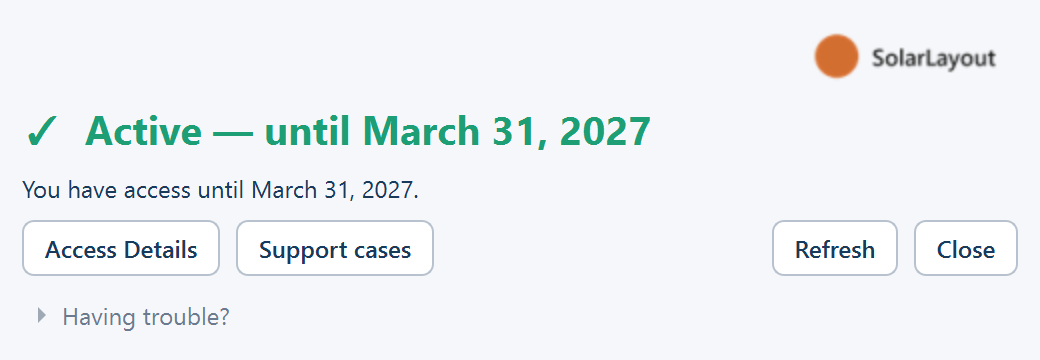
The headline and the line under it report the state:
| Headline | Detail |
|---|---|
| ✓ Active — until <date> | "You have access until <date>." |
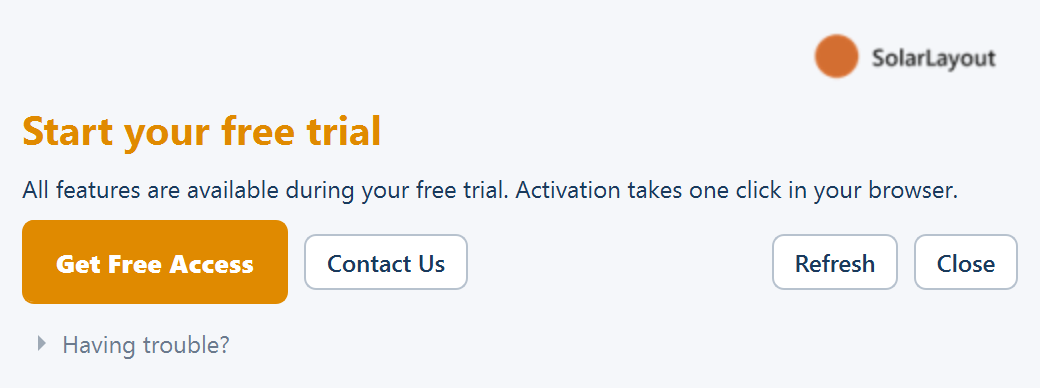
| Start your free trial | "All features are available during your free trial. Activation takes one click in your browser." |
| ⏳ Waiting for activation | "This will update automatically when you return here after activating in your browser." — shown right after Get Free Access |
| Access expired | "Your free trial or subscription has ended. Contact us to purchase, or to request a trial extension." |
| Access revoked | "Access on this device has been revoked. Contact us to restore it." |
| Access status unavailable | "We couldn't reach the SolarLayout server. Check your connection and press Refresh." |
An optional line "Access granted to <email>" names the account.
The buttons depend on the state:
- While active: Access Details, which opens the same web page as activation for this device, and Support cases, which opens your list of support cases.
- While not active: Get Free Access and Contact Us.
- Always: Refresh and Close.
The Device ID sits behind a Having trouble? disclosure at the bottom: the group Your Device ID with the hint "If support asks for your Device ID, copy it from here and include it in your message." and a Copy button. The Device ID is the Windows registry MachineGuid — the same value Windows shows under Settings ▸ System ▸ About ▸ Device ID.
Getting access
Click Get Free Access and the application opens your browser at the activation page for this device. Complete activation there, then switch back to the License / Subscription window — it re-checks whenever it regains focus and the headline flips to ✓ Active — until <date> by itself.
Contact Us opens the SolarLayout contact page in your browser, for questions or to arrange paid access. Activate this device walks through the full flow.
Working offline
When this device cannot reach the server, a good check it already made is cached, and the application keeps working under that cached status for up to 3 days before it needs to check in again; the ribbon chip reads ● Active — until <date> (offline) meanwhile. An active result is treated as fresh for 5 minutes, so the application does not call the server on every check. If it cannot reach the server and has no usable cached check, the window reads Access status unavailable.
Using more than one device
Free access is for up to three devices per account. Activate each one the same way — open the License / Subscription window on that computer, click Get Free Access, and finish in the browser. On your second or third computer the activation page says "This will be device N of 3 on your account." and its button reads Add this device; the page's details card lists every device with a This device badge.
Every device on your account shares one access record, so a device added later shows the same end date and the same status as the others. If your access is extended, every device picks up the new date; if it ends or is revoked, it ends on every device at once.
Two limits, stated plainly:
- A device counts against your account for good. Replacing a computer does not free its place. Once three have been used, the activation page reads You have used all 3 devices — "Your account already uses SolarLayout on 3 devices, so this one cannot be added." Contact SolarLayout to sort it out.
- A device belongs to one account. If this computer was activated under a different email, the page reads This device is already in use — sign in with that account instead, or contact SolarLayout.
An expired or revoked account may still add a device; the new device simply shows that status.
Updates, reinstalls, and other accounts
Access is server-side and belongs to your account, not stored in a file, so it survives reinstalls and application updates automatically — there is nothing to re-load, and a reinstalled computer keeps its place among your devices. See Updates and reinstalling.
A second Windows user account on the same PC has the same Device ID, so access carries over to it too.
Where to go next
Updates and reinstalling
How Microsoft Store updates arrive, how to check for one by hand, why your access survives them, and how to reinstall or remove the application.
Activate this device
Add this device to your account's access from the License / Subscription window or the ribbon, complete it in your browser, and confirm it automatically.