Recent projects & layouts
How to find your projects, browse the layouts you've generated, and switch between them.
A layout is one result you generated for a project — one click of Generate produces one layout. A single project usually accumulates many layouts as you sweep parameters or compare scenarios. SolarLayout keeps every one of them so you can come back to any version later.
Your Projects list
The Projects list is your library of every project on your account. Open it from Projects in the left sidebar.
Each row shows:
- A small theme-aware SVG preview of the project boundary outline (a neutral placeholder if the project has no boundary yet).
- The project name.
- Runs — how many layouts you've generated for that project.
- Last run — when the most recent layout was generated.
- Updated — when the project was last touched.
The list sorts by Last run (most recent first) by default. Click any column header to sort by that column. Use the search field above the table to filter by project name — useful once you've accumulated dozens of projects from a busy quarter.
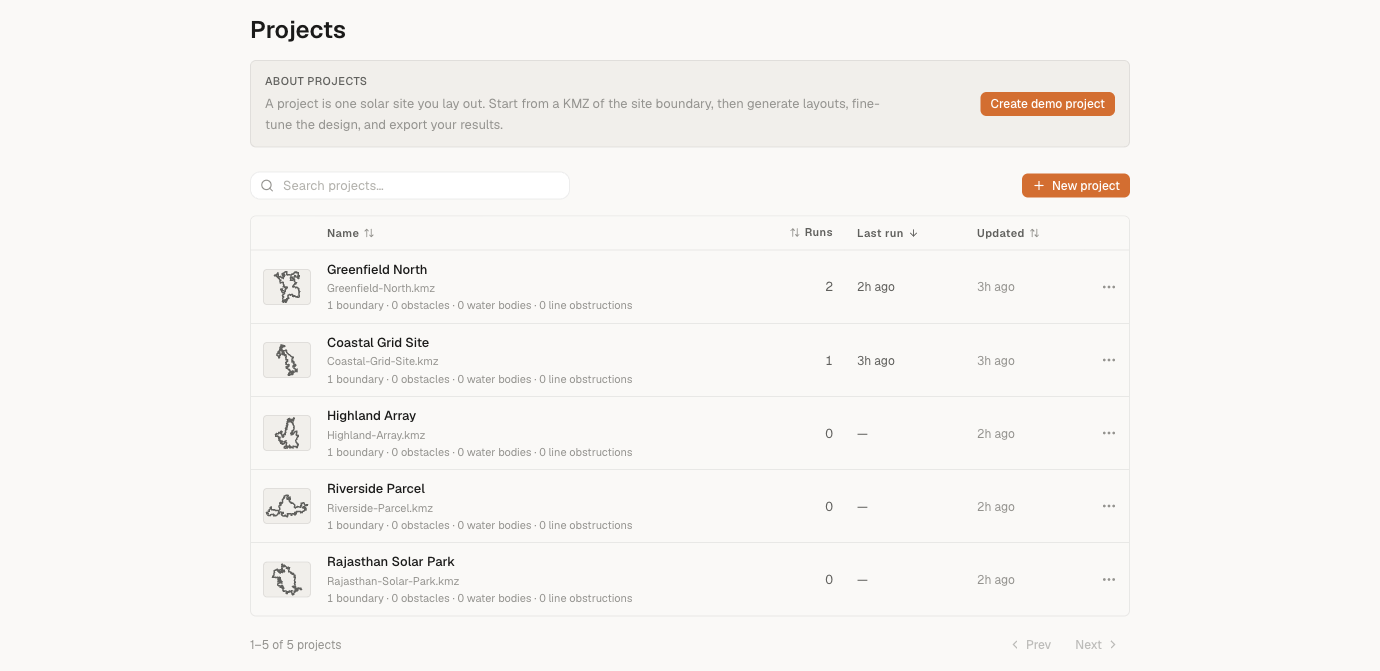
Click anywhere on a row to open the project. Click the ⋯ icon at the end of a row for Open, Settings, Rename, and Delete.
Browsing layouts inside a project
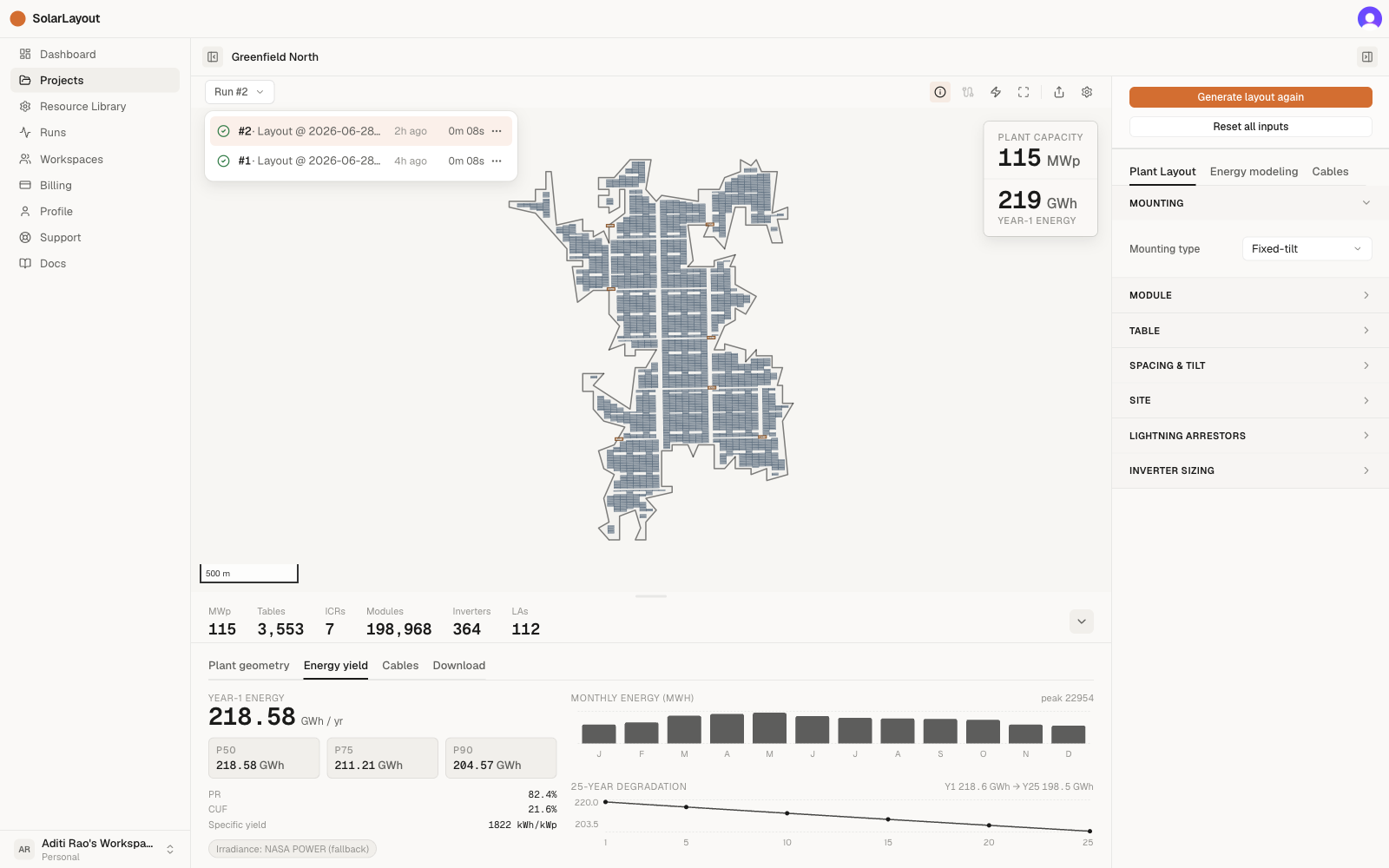
Open a project and look at the Run #N button in the controls bar directly above the canvas — that's the run switcher. Click it to drop open the list of every layout you've generated for this project, newest first. (The button always shows the number of the layout you're currently looking at, so you can tell at a glance which result is on the canvas.)
Each row shows:
- A status icon — running, queued, done, failed, or cancelled.
- The layout's number and name — shown as "#3 · My layout".
- When it was generated (relative time).
- How long the calculation took.
- A ⋯ menu with View details, Rename, and Delete.
Click any row to load that layout onto the canvas. This is how you compare scenarios: generate once at GCR 0.38, generate again at GCR 0.42, then click between the two rows to see how capacity, yield, and packing change.
Where everything lives
Both projects and the layouts inside them live in your SolarLayout account. Everything lives in your account, with nothing to manage locally — which has two practical consequences:
- The same projects and layouts appear wherever you sign in with the same account, in any browser.
- There's nothing to manage locally — your projects and layouts are always in your account, ready when you sign in.
If you need a layout's result outside of SolarLayout — for a report, a presentation, or further modelling — use one of the Exports (PDF, KMZ, DXF, or 15-minute CSV) from the open project.